Idle jobs
An idle job is a workload of your own that runs on a node while nobody rents it: mining, a render client, any Docker container. The node earns for you in the hours between rentals, and the platform stops the job the moment a renter takes the node.
How it works
- The job runs only while the node is idle. When the node is rented, verified or benchmarked, the platform stops the job first, so the renter gets the whole machine.
- When the node is idle again, the job starts again by itself. The platform checks every node about once a minute.
- The job runs as a Docker container on the node, managed by the platform. You do not need SSH or anything installed on the machine beyond the node itself.
- You can limit the days and hours a job may run, and give it a GPU profile of its own.
There are two types of job:
Type | What it runs | For whom |
|---|---|---|
Mining | A miner from the catalogue with your pools and payout address. The image and its settings are prepared for you | Anyone who wants to mine between rentals without building a container |
Custom | Your own Docker image, command, environment variables and ports | When you know exactly what to run |
Rules
- A node runs jobs of one type only: either one mining job, or up to 3 custom jobs.
- Jobs are set per node. To run the same job on several nodes, create it for each.
- A job never runs during a rental. Do not try to keep a workload running on a rented node outside idle jobs: see Do not run workloads outside idle jobs.
Creating a mining job
- In CUBE, open Hosting → Idle Jobs and click Add idle job.
- Choose Mining.
- Pick the node.
- Fill in the miner:
- Miner and Algorithm.
- Pool: one from the list, or Custom pool… with host:port (stratum+tcp:// and stratum+ssl:// are accepted too). Turn on Pool port uses TLS (SSL) for a TLS port.
- Payout address: a saved wallet, or Enter an address manually. For pools with accounts, enter your pool login instead.
- Worker: the name shown in the pool dashboard. By default it is octa- plus the node number.
- Pool password (most pools ignore it, the default is x) and Extra arguments, appended as they are to the miner command line.
- Optionally add a second miner with + Add a CPU miner or + Add a GPU miner, for example a CPU miner next to the GPU one.
- Set the schedule and the GPU profile if you need them (see below), and click Create.
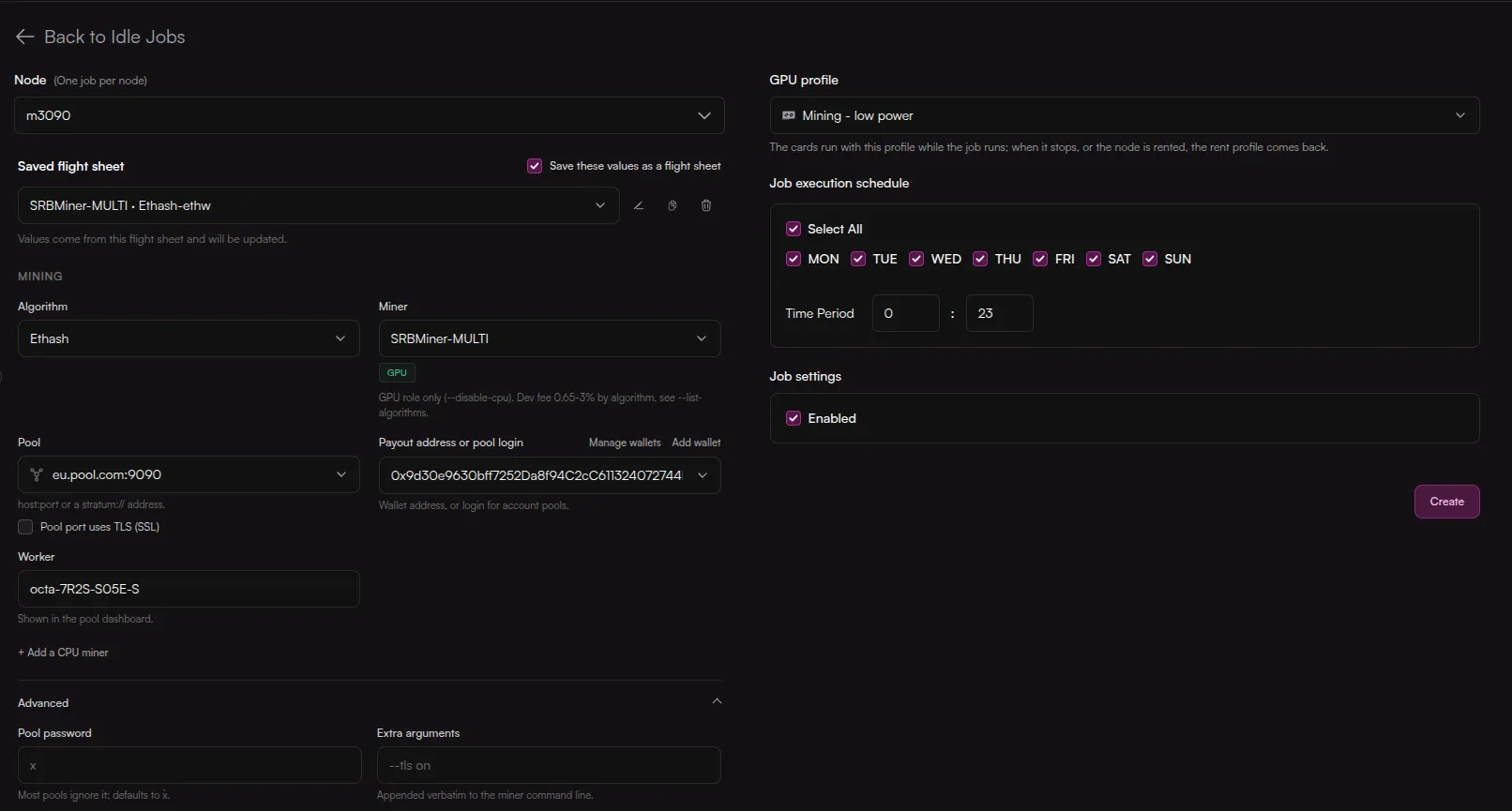
The miner settings can be saved as a flight sheet, the same flight sheets as in the Mining app of the marketplace. Next time pick the flight sheet instead of filling in the form again.
Saved wallets are managed in the same form (Manage wallets). Deleting a wallet does not affect jobs already created with it: a job keeps paying the address it was saved with.
Creating a custom job
- In CUBE, open Hosting → Idle Jobs and click Add idle job.
- Choose Custom.
- Fill in the form:
Field | What it sets |
|---|---|
Node | Where the job runs |
Container image | A Docker image, for example myrepo/worker:1.4. Required |
Command | The command to run in the container, up to 2000 characters. Empty means the image's default |
Privileged | Full container capabilities. Turn it on only if the image needs it |
Network Host | The container uses the host's network directly instead of its own |
Environment variables | NAME=value pairs. Names may contain letters, digits and _ and cannot start with a digit |
Port publishing | Host port to container port pairs, 1 to 65535. Each pair is published for both TCP and UDP |
Start script | Absolute path to a script on the node, run on the host before the job starts |
Stop script | Absolute path to a script on the node, run on the host after the job stops |
GPU profile | See GPU profile |
Job execution schedule | See Schedule |
Enabled | Whether the job runs at all |
- Click Create.
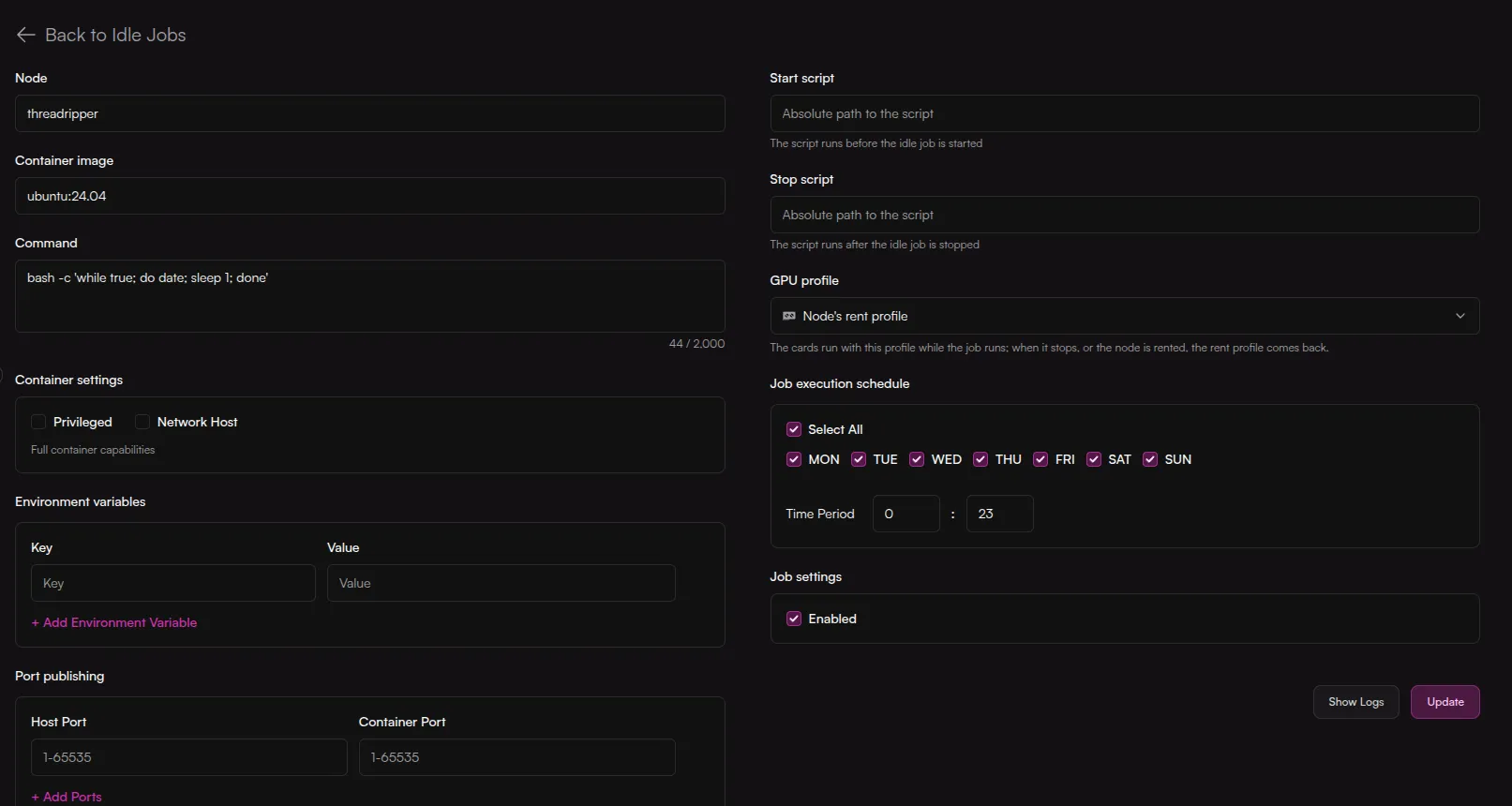
Start and stop scripts are for changes on the host the container cannot make itself. Whatever the start script does, the stop script should undo: it also runs when the container fails to start or exits on its own, so the host never keeps leftovers from a failed attempt.
The node keeps the images of all its jobs, disabled ones included, so a job you enable again starts without downloading its image anew.
Schedule
By default a job may run at any time. In Job execution schedule you can limit it to some days of the week and a range of hours.
- Hours are whole hours from 0 to 23, both ends included, in UTC. A range of 9 to 17 runs from 09:00 to 17:59 UTC.
- A range can run over midnight: 22 to 6 runs from 22:00 to 06:59 UTC. Such a range belongs to the day it starts on: Monday 22 to 6 is Monday 22:00 to Tuesday 06:59.
- Start and end cannot be the same hour.
Outside the schedule the job is stopped and its status shows Outside schedule. It starts again when its hours come, if the node is idle.
GPU profile
A job can have a GPU profile of its own, for example a mining profile with tuned memory clocks. Choose it in the job's GPU profile field.
- While the job runs, the cards use the job's profile.
- When the job stops, or the node is rented, the node's rent profile comes back right away. A renter never gets the job's tuning.
- Node's rent profile means the job runs with the same profile as rentals.
- If several jobs with a profile run on one node, the cards use the profile of the job created first.
See GPU profiles for how to create a profile.
Statuses
The Idle Jobs list shows each job with its node, type and status. Click Refresh to update it.
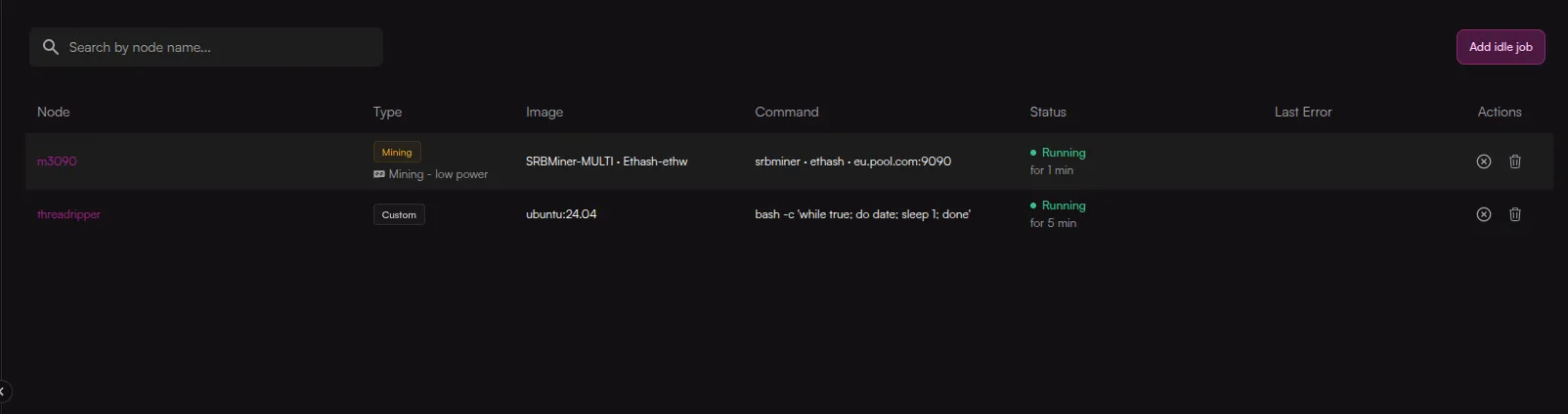
Status | Meaning |
|---|---|
Running | The job is running. Next to it, for how long |
Starting | The job was just enabled or retried, and the platform is about to start it |
Restarting | You changed the job, and the platform is restarting it with the new settings |
Stopped | The job is not running for a normal reason: Node is busy (rented, verified or benchmarked), Outside schedule, or Exited (the container finished on its own with code 0) |
Failed | The job could not start (Couldn't start), or its container exited with an error (Exit code N) |
Offline | The node is offline |
Disabled | The job is turned off |
Not started | The platform has not started the job yet |
When a job fails
If a job fails to start, or its container exits with an error, the platform tries again after 1, 5 and 15 minutes, then every hour. The list shows the number of failed starts in a row and when the next attempt is.
- Once the job has been running for 5 minutes, the failures are forgotten.
- Any change to the job in CUBE starts it again at once, with the failures reset. So does Retry now.
- The error text is shown in the list until the job starts again or you change it.
Common causes: a mistyped image name, a private image the node cannot pull, a command that exits right away, a start script that does not exist or exits with an error, a GPU profile the cards do not accept.
Logs
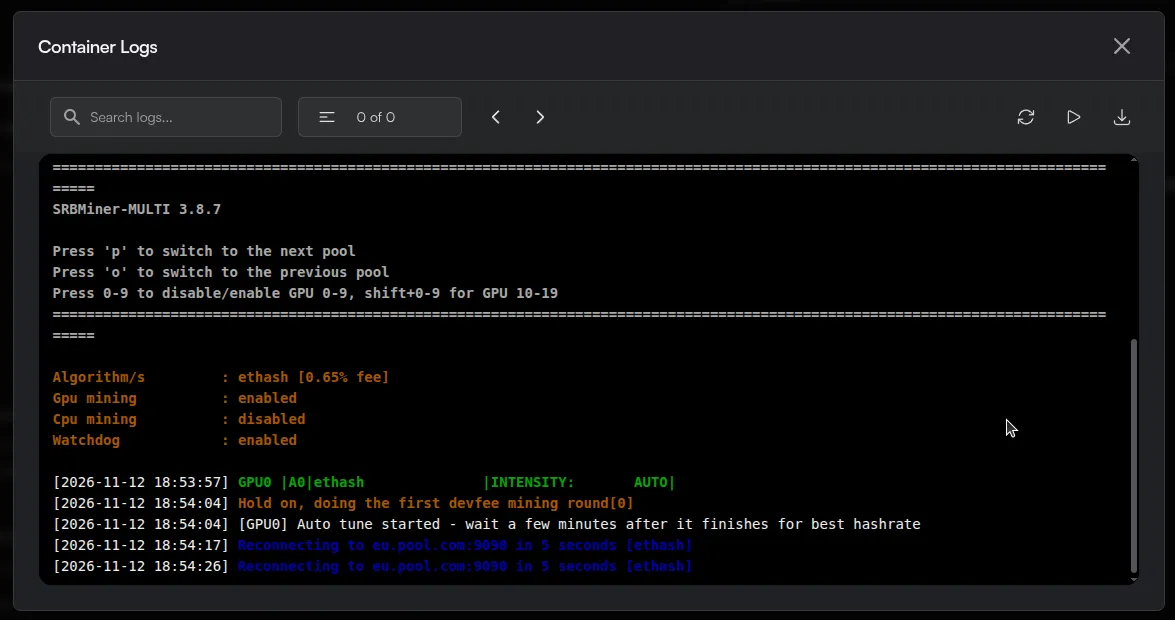
Click Show Logs in the job's form to see its output. While the job runs, the output is read live from the node. When it is not running, you see the last 1000 lines (up to 256 KB) of its last run, kept after the container is gone. This is the first place to look when a job fails.
Turning a job off and deleting it
- Disable the job in the list (or clear Enabled in its form) to stop it and keep its settings. Enable it again later, and it starts on the next idle check.
- Delete the job to stop it and remove it for good.
Either way the container is stopped and the stop script runs.
HiveOS
On a node running HiveOS, the platform also manages the miner from your HiveOS flight sheet: it stops it when the node is rented and starts it again when the node is idle. You do not need an idle job for that.
If HiveOS starts the miner during a rental (for example after you change the flight sheet in the HiveOS dashboard), the platform finds it within about a minute and stops it again.
Do not run workloads outside idle jobs
The platform stops only what it manages: idle jobs and the HiveOS miner. A miner or any other heavy process started on the node some other way keeps running during a rental and takes the GPU, CPU or memory the renter paid for.
To catch this, the platform checks idle nodes from time to time, at moments you cannot predict: it stops all its own workloads, as it would for a rental, and looks at what is still loading the machine. GPU memory in use, CPU load or a process holding gigabytes of memory at that moment count as a workload outside idle jobs. A node caught twice in a row is taken off the marketplace.
If you want the node to work between rentals, run that work as an idle job.
Tips
- Check that mining pays off. The node's energy figures in CUBE include Power without rentals, the GPU power while nobody rents the node: mining in those hours is worth it only if it earns more than the electricity costs.
- Give a mining job a GPU profile tuned for mining, and keep the rent profile for renters.
- Use the schedule to mine only in the hours your electricity is cheap. Remember the hours are in UTC.
- Test a custom image on a machine of your own first (docker run with the same command and variables). A job that exits right away spends its retries in a loop.
- Keep in mind that the job stops at any moment a renter comes. Prefer workloads that can be interrupted and pick up where they left off.