Quick Start Guide
Getting started with OctaRender is a straightforward process. The rendering platform is integrated directly into Cube (the OctaSpace marketplace Portal).
Register/Login
Navigate to the Cube portal at cube.octa.computer. Create a new account or sign in with your existing credentials.
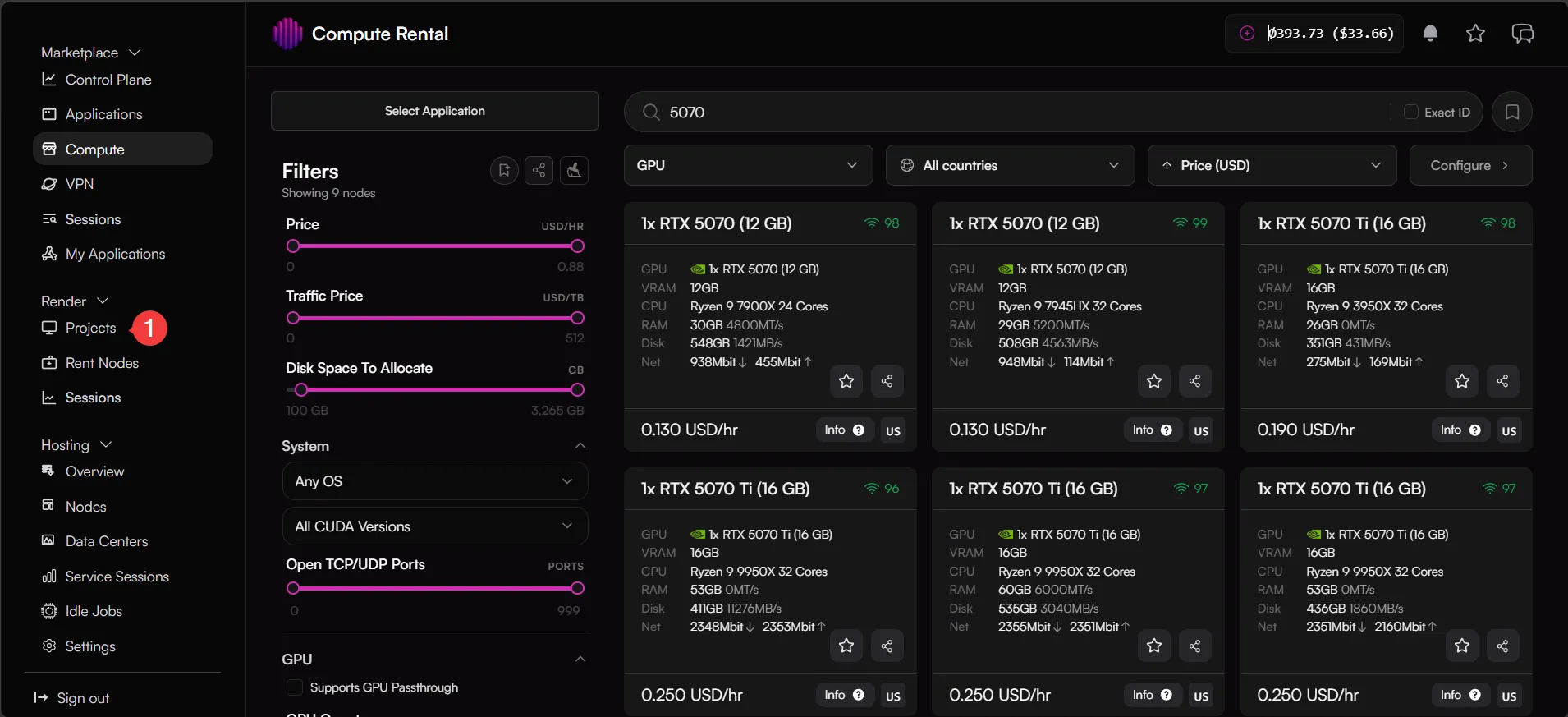
Once signed in, you will land on the main compute rental dashboard. Locate the sidebar menu on the left side of the screen. Under the Render section, click on Projects.
Download and install addon
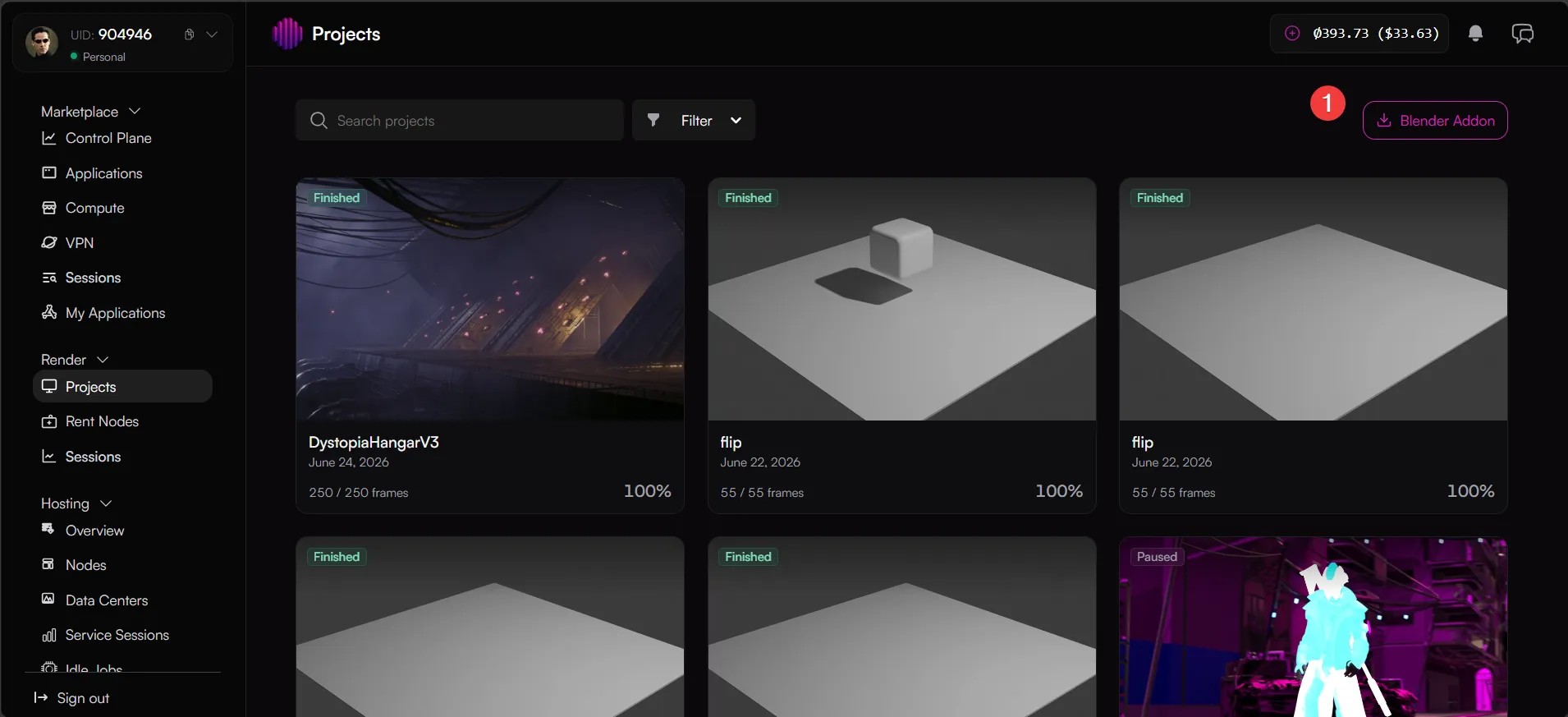
On the Projects page, locate and click the Blender Addon button. This will download the native OctaRender client .zip file to your local machine. Do not unzip this file.
The Projects page serves as your central hub where all active, pending, and historical rendering projects are displayed.
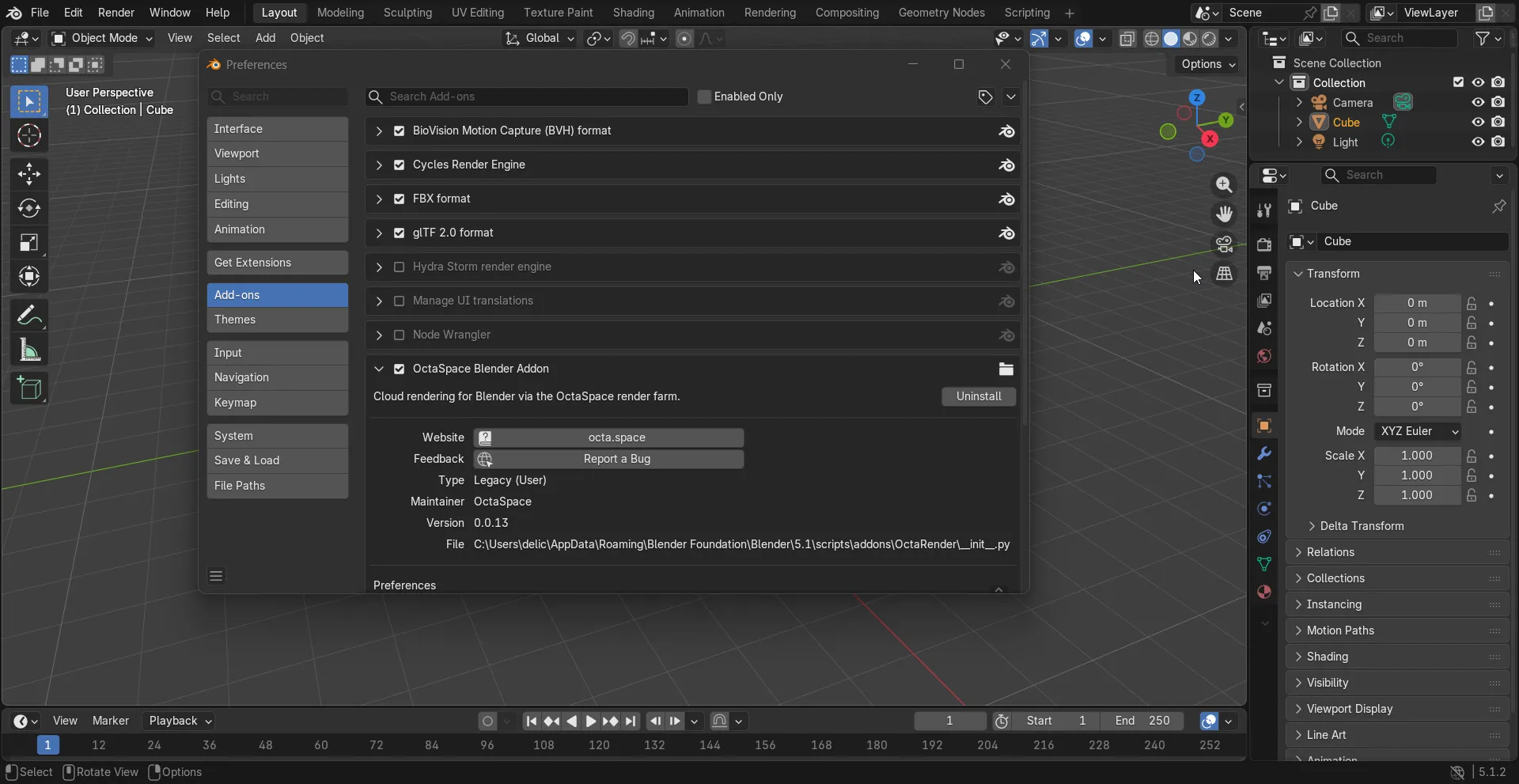
Once the download is complete, open Blender, locate the file path where you downloaded the addon and install the addon.
Open Blender on your machine and follow these sub-steps to install the client:
- Go to Edit > Preferences in the top menu.
- Select the Add-ons tab on the left.
- Click the Install... button at the top right of the preferences window.
- Navigate to your downloads folder, select the downloaded .zip file, and click Install Add-on.
- Locate the newly listed Render: OctaRender add-on and check the box next to it to enable it.
Once successfully installed and enabled, the OctaRender management panel will appear natively within Blender's Render properties context (located in the properties panel on the right side of the default Blender workspace).
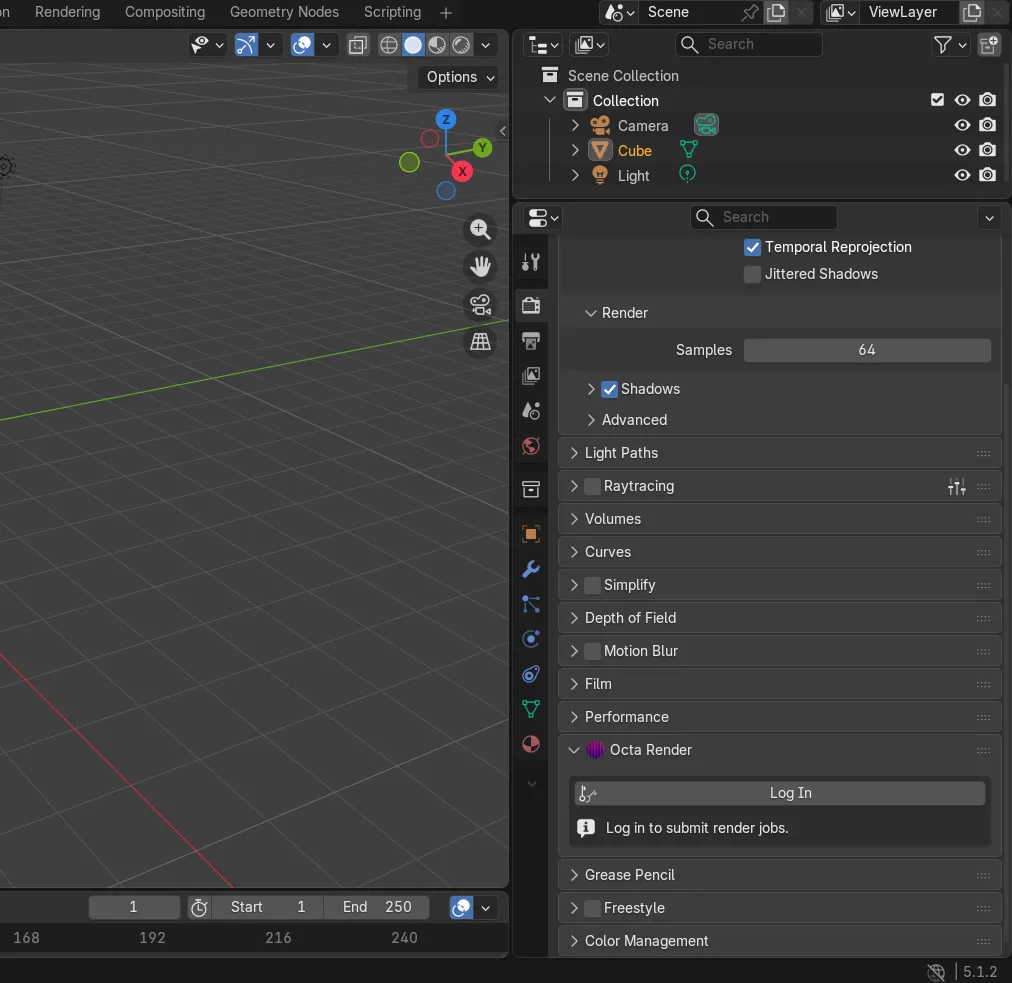
To unlock full functionality, you must link the add-on to your account:
- Click the Log In button inside the OctaRender panel.
- This will automatically open a secure tab in your default web browser.
- Authenticate using your Cube portal credentials.
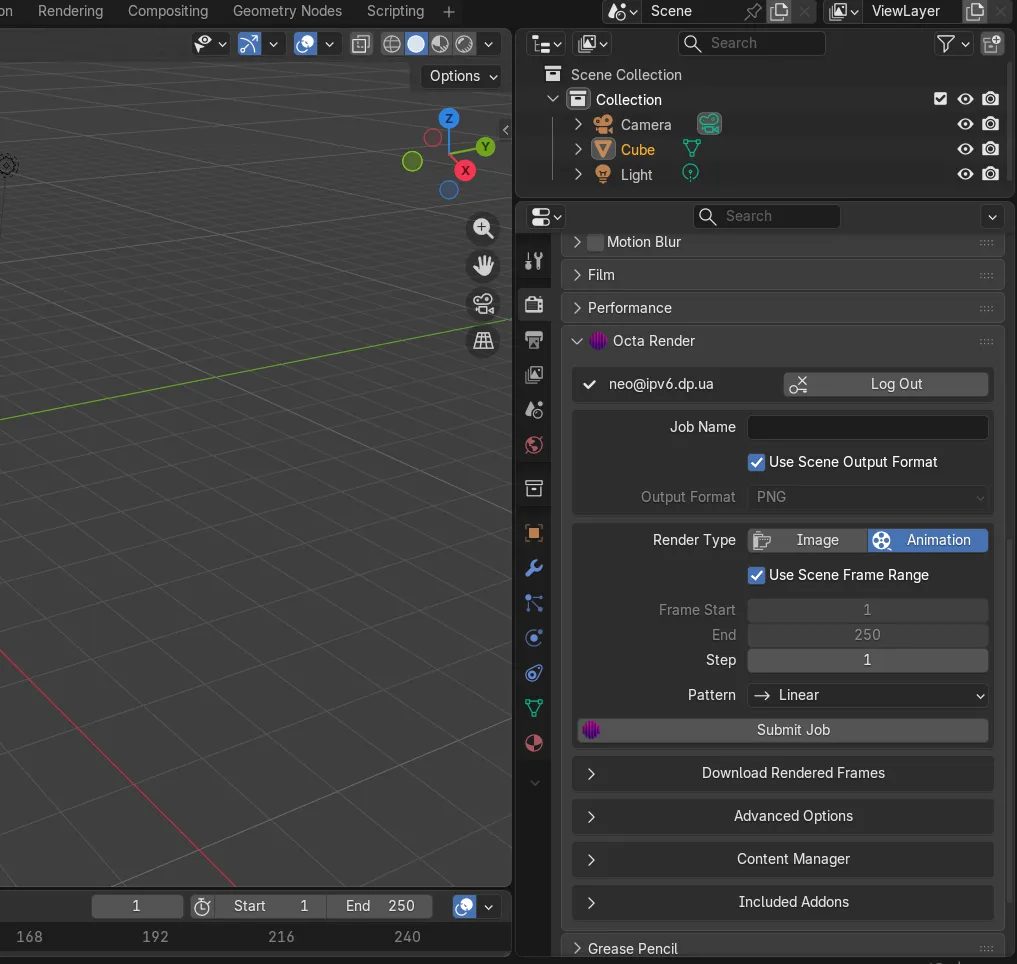
Once authentication is complete, the browser window can be closed, and the full suite of OctaRender functionalities will be active inside Blender. You are now ready to configure and submit your first project.