GPU profiles
A GPU profile sets the power limit, clock ceilings and fan speed your cards run with while a node is rented. You set the values once per card model and assign the profile to as many nodes as you like: OctaSpace applies it to every card and keeps it in place.
Why use profiles
- Efficiency. Most cards lose only a little performance with a lower power limit, while drawing noticeably less power and running cooler.
- Cooling and noise. A fixed fan speed or capped clocks keep a dense rig or a hot room within limits.
- One place for the whole fleet. Change a value in the profile, and every node using it gets the new setting, no SSH or nvidia-smi on each machine.
- Honest listing. The node is rented with the settings you chose, and the platform makes sure they stay that way for the whole rental.
What a profile can set
Setting | What it does | If left empty |
|---|---|---|
Power limit | Maximum power the card may draw, in watts | The card's factory limit |
Core clock | Ceiling for the GPU core clock, in MHz | No ceiling |
Memory clock | Ceiling for the memory clock, in MHz | No ceiling |
Fan | Auto: the card controls its fans. Fixed: a set speed in percent, at any temperature | Auto |
Clock values are ceilings, not fixed frequencies: the card can still run slower when idle or when it hits its power limit.
Supported cards
GPU profiles currently work with NVIDIA cards only. AMD and Intel cards keep their own defaults.
Not every NVIDIA card supports every setting:
- Core clock ceilings need Volta (Titan V) or newer, so RTX 20 series and later.
- Memory clock ceilings need Ampere or newer, so RTX 30 series and later.
- Some cards do not allow changing the power limit or fan speed. The profile editor and the node's Hardware tab show what each card accepts.
Creating a profile
- In CUBE, open Hosting → GPU profiles and click New profile.
- Give the profile a name, for example "4090 efficiency".
- Click Add card model and pick a model from your nodes. For each model, fill in only the values you want to change.
- Optionally fill in the All other cards row: it applies to any card without its own row in the profile.
- Click Save changes.
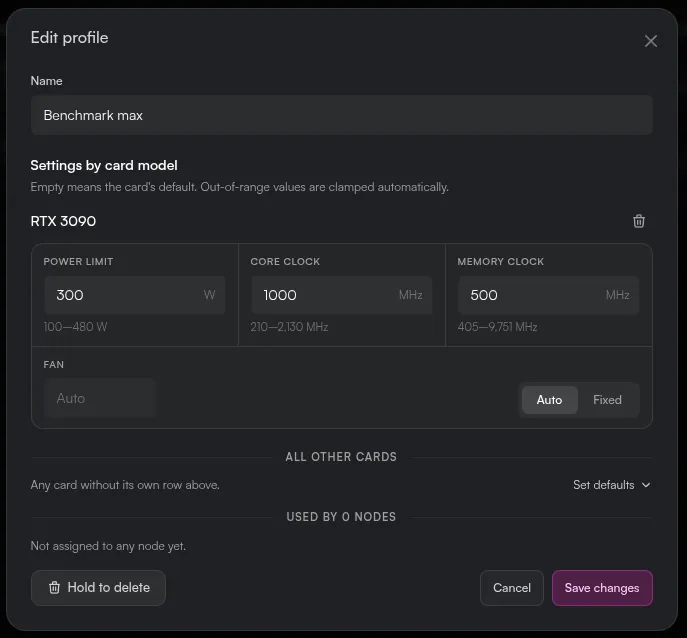
Next to each field the editor shows the range your cards accept (min and max), taken from the cards in your nodes. You do not have to match the range exactly: a value out of range is set to the nearest value the card accepts.
One profile can hold rows for several models, so a single profile can cover a mixed fleet: for example, one row for RTX 4090, one for RTX 3090 and a fallback in All other cards.
Assigning a profile to a node
- Open the node in CUBE and go to the Hardware tab.
- In GPU profile while rented, pick the profile. Card defaults removes the profile from the node.

The GPU profiles page also lists nodes that have GPUs but no profile assigned, with a link to each so you can assign one.
A profile is shared: when you edit it, the change reaches every node using it. The picker shows how many other nodes share the profile, and the editor shows which nodes use it.
When a profile is applied
The settings are applied only while the node is idle, never during a rental, verification or benchmark. The platform applies the profile:
- when the node connects, including after a reboot (the cards do not keep the settings across a reboot or driver reload);
- every time the node becomes idle, including after a VM rental;
- when you assign a profile or change its values in CUBE.
If the node is busy when you change something, the change waits until it is idle again, and the status shows Waiting for idle.
Checking the status
The GPU profiles list shows each profile with the number of nodes it is assigned to and what is actually set on their cards. The node's Hardware tab shows the status of each card.

Status | Meaning |
|---|---|
Applied | The card runs with the profile exactly as set |
Adjusted | The profile is applied, but some value was out of the card's range and was set to the nearest allowed one |
Waiting for idle | The node has not applied the latest version of the profile yet: it is busy or offline |
Error | The node could not apply the profile. Check the card supports the setting and the driver is working |
Card defaults | No profile is assigned: the card runs with its own settings |
The node dashboard (http://<node-ip>:18888) also shows which profile is applied and the values on each card. See Node monitoring.
Profiles and idle jobs
An idle job can have a GPU profile of its own, for example a mining profile with tuned memory clocks. Choose it in the job's GPU profile field.
- While the job runs, the cards use the job's profile.
- When the job stops, or the node is rented, the rental profile comes back right away. A renter never gets the job's tuning.
- Node's rent profile in that field means the job runs with the same profile as rentals.
- If several jobs with a profile run on one node, the cards use the profile of the job created first.
Deleting a profile
Open the profile and hold Delete profile. Nodes that used it go back to the cards' defaults, and idle jobs that used it restart with their node's rent profile.
Do not change GPU settings by hand during a rental
The renter pays for the GPU as listed. Lowering the power limit or locking clocks by hand (for example with nvidia-smi -pl, -lgc or -lmc) while a rental is running gives the renter less than they paid for. Change settings through a GPU profile instead: it is applied between rentals.
The platform checks the cards throughout every rental on NVIDIA nodes. If the settings differ from what was applied:
- the cards are set back automatically;
- the renter is notified, and the change is recorded in the session log;
- the node gets a strike. The rental itself continues.
Two strikes within 30 days take the node off the marketplace and lock it once the current rental ends.
Tips
- Start with the power limit: for most cards 70–80% of the factory limit keeps nearly all performance at much lower power draw and temperature.
- Check the effect with the node's AI Score: run the test again in CUBE after applying a profile.
- Use the Grafana dashboard to compare power draw, temperatures and clocks before and after. See Node monitoring.
- A fixed fan speed holds at any temperature. Leave the fan on Auto unless you have a reason to fix it.