OctaRender Addon
The OctaRender addon is your primary control panel for your project prior to submitting it to the render farm. All specific parameters; from output file formats and asset dependencies to custom add-ons and preview thumbnail configurations, are managed directly from this interface inside Blender.
By handling your pipeline settings locally, you ensure that the remote decentralized nodes replicate your exact workstation environment. This section covers the specific components of the addon, their respective settings, and how to configure them for optimal rendering performance.
Label | Section | Description |
|---|---|---|
Job Name | 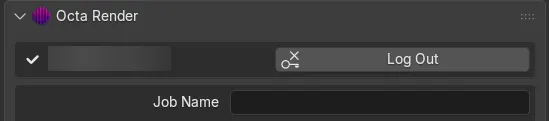 | Enter a custom name for your project. This is how the workload will be identified and tracked within the Render dashboard. |
Output format | 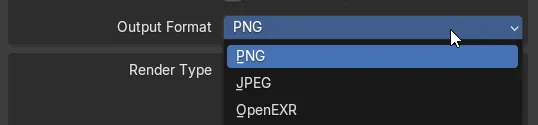 | By default, this is locked to your local Blender project output settings. To override this, uncheck the box and manually select PNG, JPEG, or EXR from the dropdown menu. |
Render type | 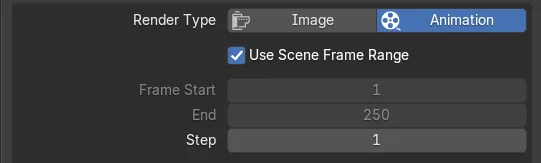 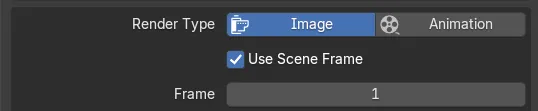 | Toggle between: Image (rendering a single specified frame) and Animation (rendering a sequence or frame range). The add-on automatically detects your local Blender timeline boundaries. To render a subset of your timeline, uncheck the automatic checkbox and manually input your custom start and end frame values. |
Pattern |  | Controls the chronological sequence in which the nodes process your frames. Choose from two operational modes: • Linear: Frames are processed in strict sequential order (1, 2, 3, 4...). • Temporal Refine: Frames are processed in a distributed, scattered interval across nodes (1, 10, 20, 30...). This is ideal for animations, allowing you to visually inspect key intervals and pacing before the remainder of the sequence fills in. Note: Both distribution patterns will render the complete frame range if left uninterrupted. |
Download Rendered frames | 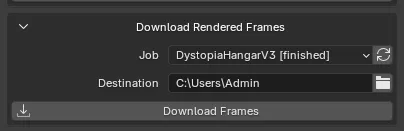 | Allows you to retrieve your finished assets directly back into your local production environment through the add-on interface. Job - Click the dropdown menu to see a populated list of all your completed or actively rendering projects from the network. Select the specific job you want to download. Destination - Click the folder icon to browse and choose the directory on your local workstation where the rendered image files or sequences should be saved. Note: You can also download completed projects directly via the User Interface on the platform. |
Advanced Options | 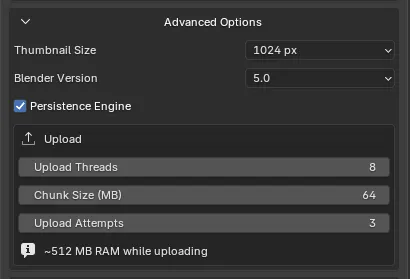 | The advanced section provides some additional controls: Thumbnail Size - Choose the size of the preview thumbnail of completed frames on the render platform. Blender Version - We automatically detect the Blender version, but you can manually override to a different version if required. Persistence Engine - Enabled by default, this enables higher performance rendering on the platform. Toggle to turn off. Upload - Enables you to manually override upload parameters. Choose Upload threads, Chunk Size, and how many upload attempts to use. This can be useful in cases where you may have a slow or unstable internet connection. |
Included Addons | 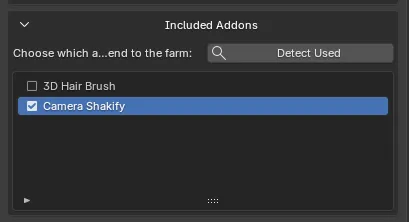 | If you use any add-ons in your project, this section enables you to include them on the farm. The platform automatically detects and toggles the add-ons used in your project upon scene evaluation. However, if any are missed, you can click the "Detect Used" button to re-scan the file. Additionally, the interface lists all available add-ons, allowing you to manually toggle and force-include any specific tools required for your project. |