Custom docker images
The OctaSpace Marketplace provides the flexibility to run any containerized application from public or private registries. This enables you to deploy specialized tools and custom-built environments that may not be available in the pre-configured application catalog.
In this guide, we will demonstrate how to deploy a custom Docker image from Docker Hub, using Visual Studio Code as an example.
Step 1: Locate Your Image on Docker Hub
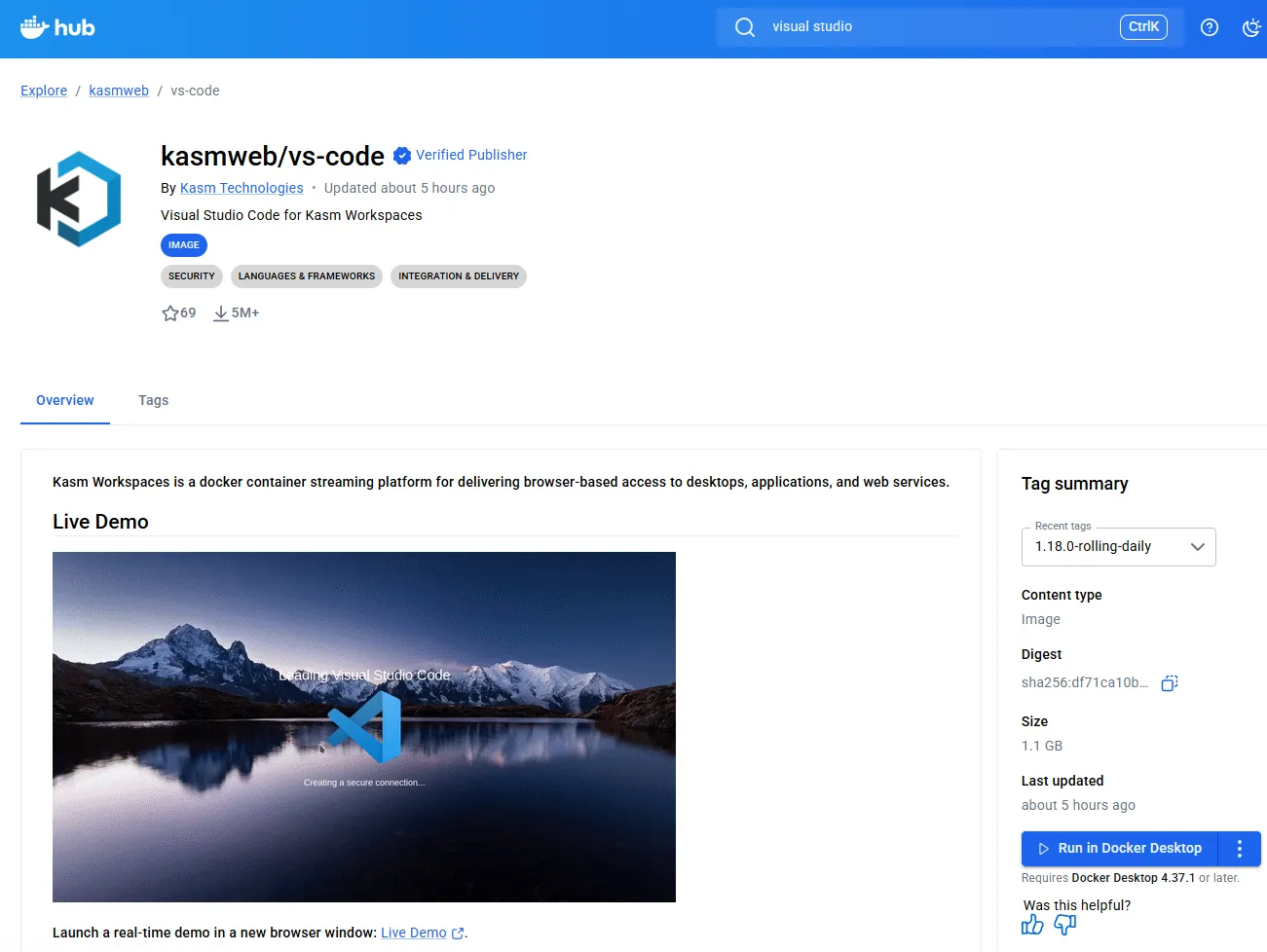
Before deploying, you must identify the correct image and tag from Docker Hub.
For this example, we will use the popular kasmweb/vs-code image, which provides a VS Code interface accessible via a web browser.
- Search for the image on Docker Hub.
- Note the Image Name: kasmweb/vs-code
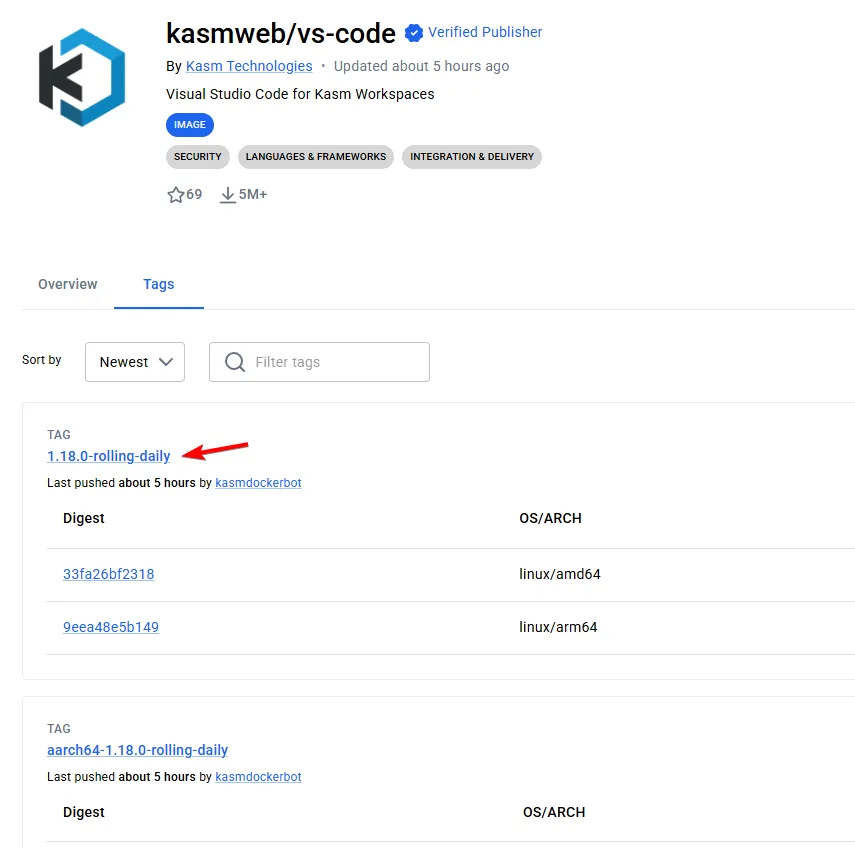
- Check the Tags tab for a specific version (e.g., latest) or a specific architecture
Step 2: Configure the Marketplace Session
Once you have identified your image, navigate to the OctaSpace Marketplace to begin the deployment.
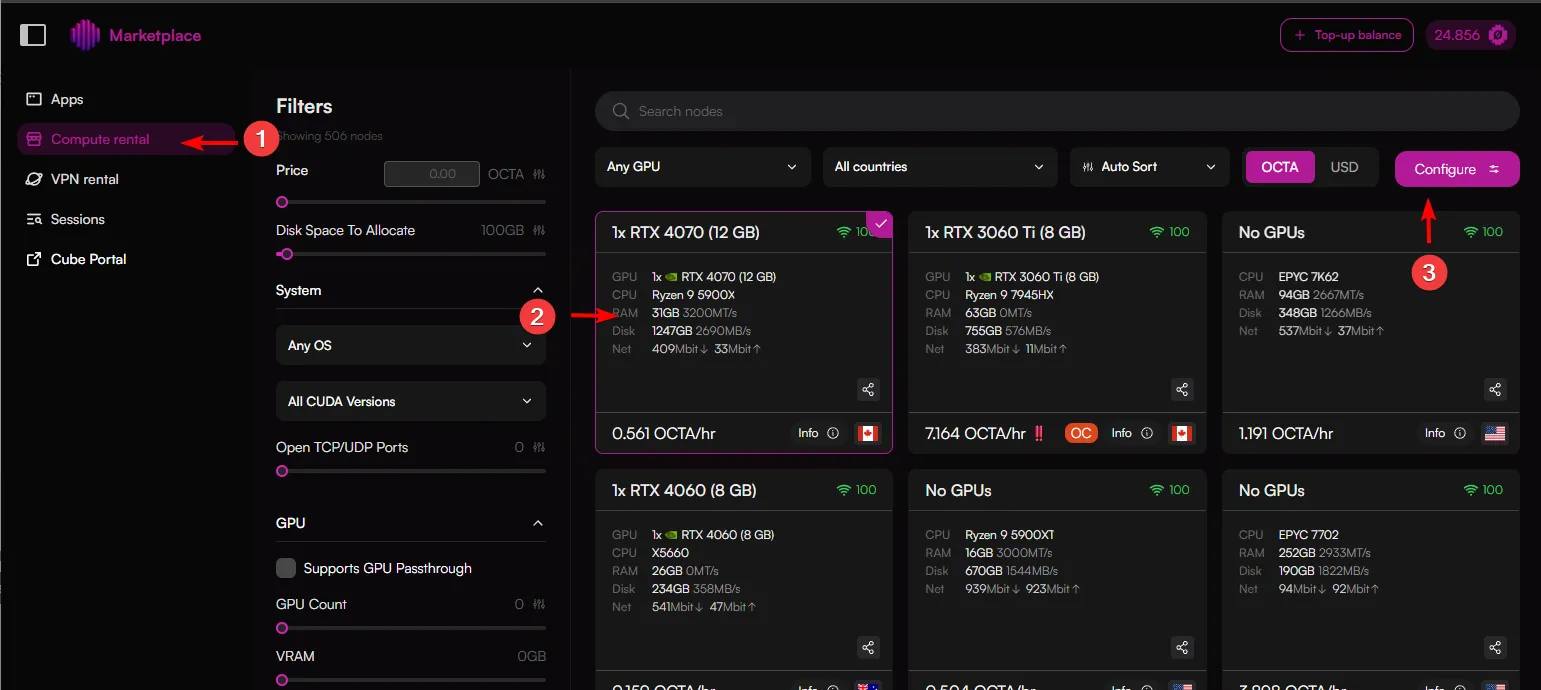
- Access Compute Rental: Upon loading the marketplace, you will typically land on the Apps section. If the sidebar menu is collapsed, open it and select the Compute Rental option.
- Select a Node: Browse the node list and select a provider that meets your hardware requirements (CPU, RAM, and Disk).
- Open Configuration: Click the Configure button on your chosen node.
Deployment Configuration
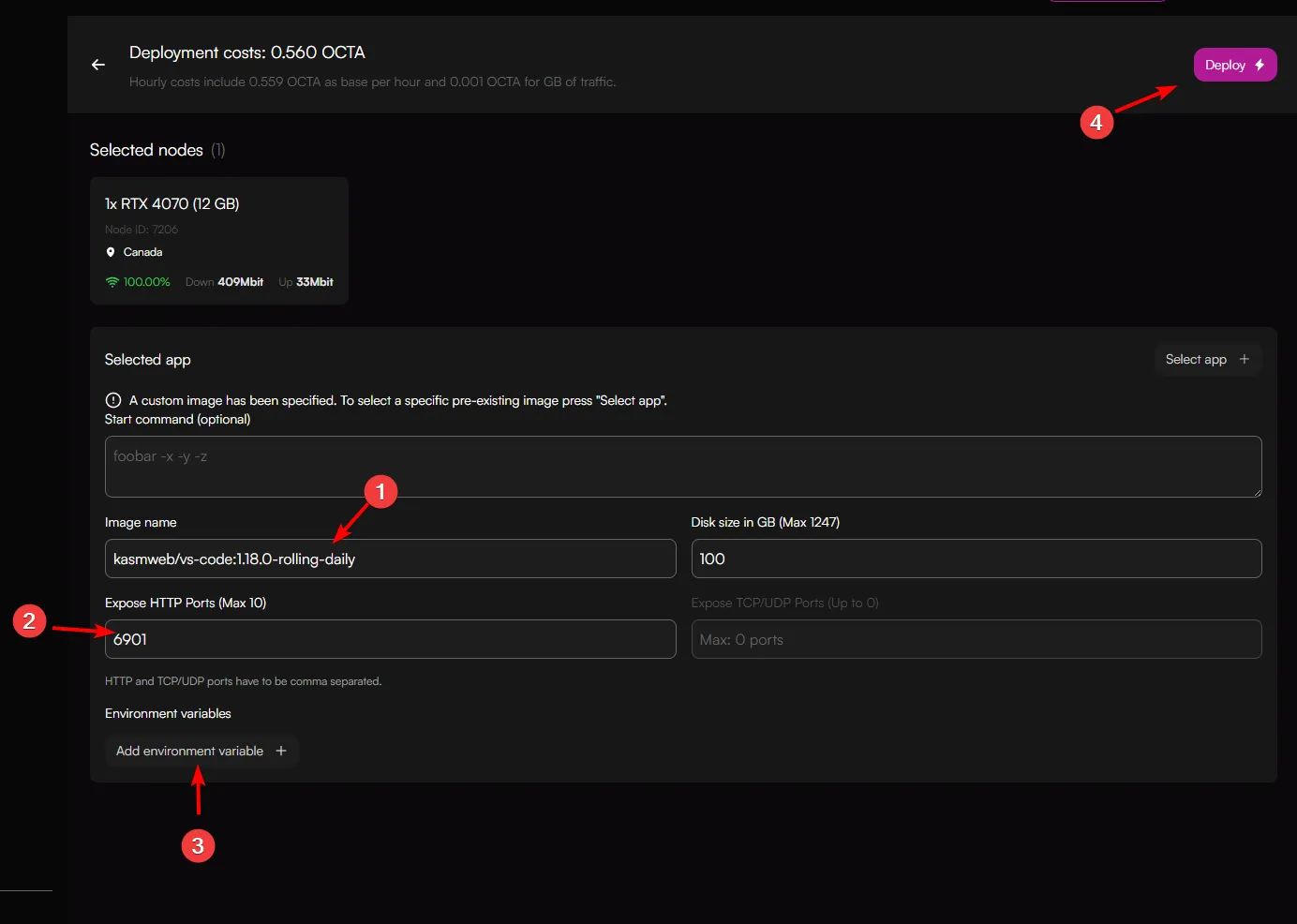
On the configuration page, you will define the parameters for your custom container:
- Image Name: Input the full image path and tag. For this example, we use kasmweb/vs-code:1.18.0-rolling-daily.
- Port Mapping: If the container requires a web UI or specific internal ports (such as port 3000 for Kasm VS Code), enter the port number. If multiple ports are required, use a comma to separate them (e.g., 3000, 8443).
- Environment Variables: If the image utilizes specific variables for configuration (like PASSWORD or SUDO_PASSWORD), click the "Add environment variable" button consecutively for each required entry.
Once all fields are populated, click Deploy to launch your session. The network will pull the image from the registry and initialize the container on the provider's hardware.
Monitoring Deployment Status
Deploying a custom image involves several stages. You can track the progress and diagnose any startup issues directly from your Sessions dashboard.
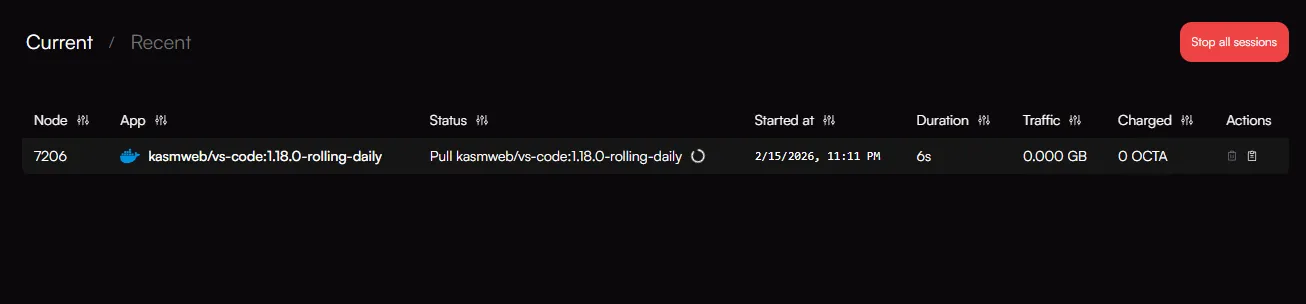
1. The Pulling State
Once you click Deploy, the node must first download the image from the container registry (e.g., Docker Hub).
- Status: The initial state will show "Pull {image_name}".
- Meaning: This indicates the node is currently downloading the image layers. The time this takes depends on the image size and the node's internet speed.
2. Monitoring Session Logs
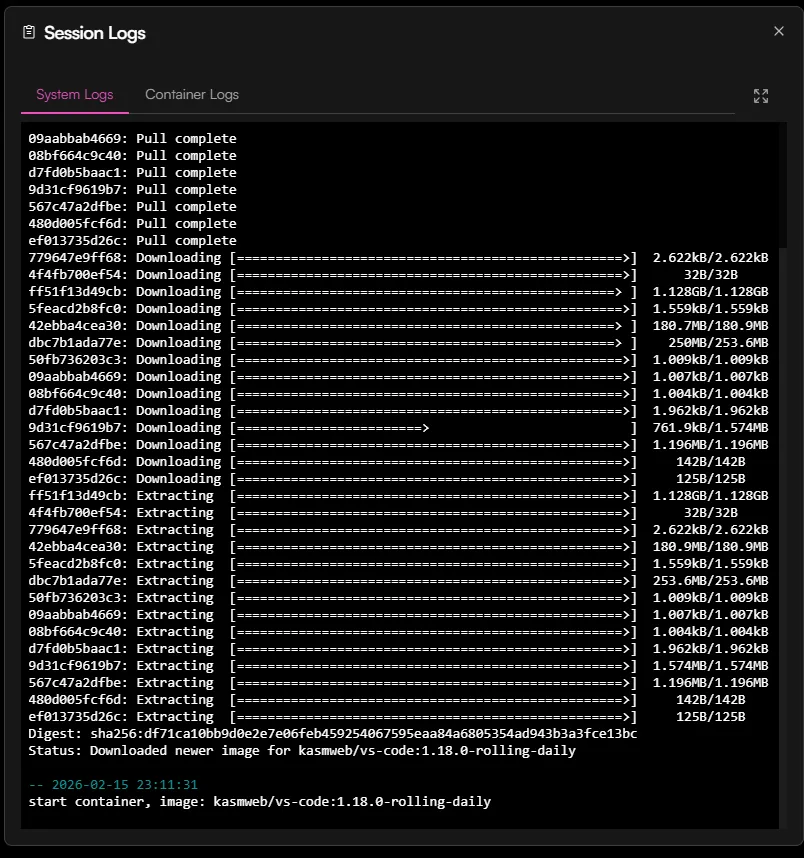
To see exactly what is happening inside the container during the startup process, you can view the real-time logs.
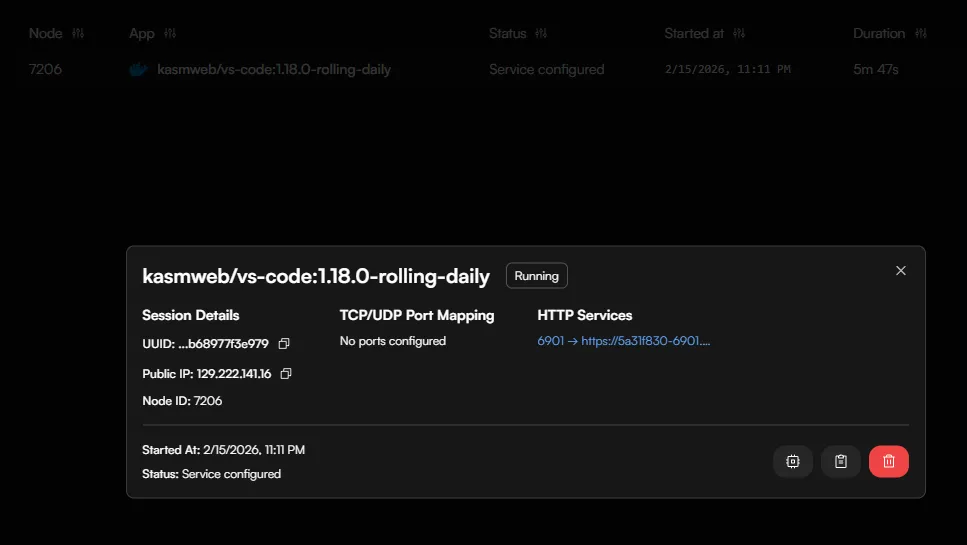
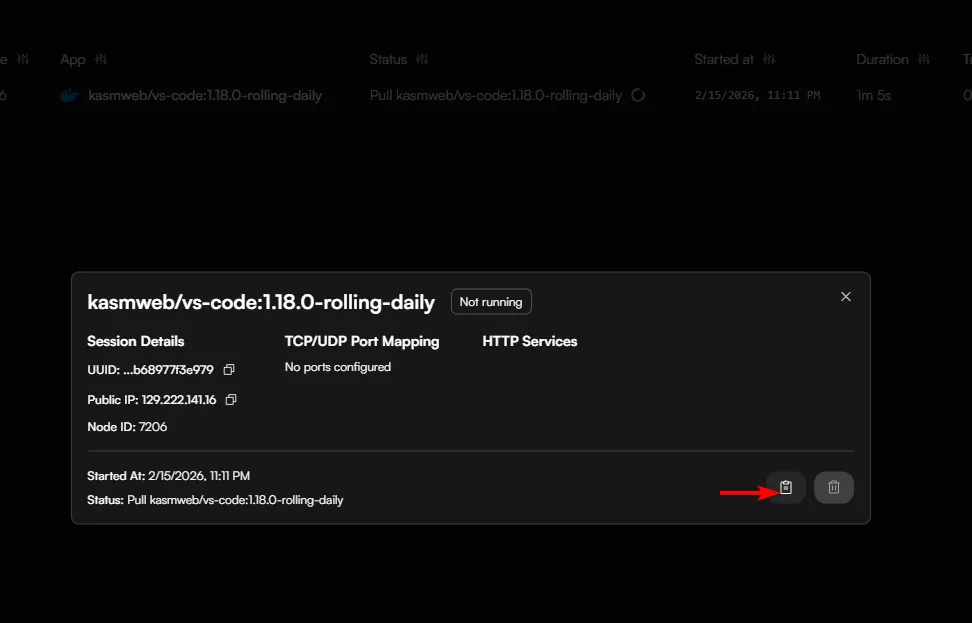
- Open Details: Click on the active session row to open the session details pop-up.
- Access Logs: Click the Clipboard Icon (located next to the node details) to monitor progress.
- View Output: A separate window will appear. Select the Container Logs tab to view the live output from your Docker image.
Monitoring these logs is the best way to troubleshoot common issues, such as missing environment variables or port conflicts.
3. Service Configured & UI Access
Once the image is fully downloaded and the container has successfully initialized its internal services, the status will update.
- Status: "Service configured"
- Accessing the UI: Click on the session again. In the details pop-up, look for the HTTP Services section. If you mapped a port correctly (e.g., port 6901 for VS Code), you will be presented with a direct link to your application's web interface.
Wait for the App: Sometimes the status shows "Service configured" while the application inside the container is still finishing its internal setup. If the link doesn't load immediately, check the logs again to ensure the process is complete.