Accessing via Direct SSH
Once your key is configured in the Credentials tab, you are ready to connect.
Restart Required: If you have an active session running, you must Restart it now. This ensures the new SSH key is properly injected into the instance.
While there are many SSH clients available, two of the most popular options are Termius and PuTTY. You can download them using the links below:
- Termius: https://termius.com/ (Modern interface, cross-platform)
- PuTTY: Download Latest Version (Lightweight, industry standard)
Below we'll cover how to connect with each.
STOP: Do not proceed if you haven't generated and added your public key in Cube yet. If you haven't done this, please head back to the Setting up SSH Access"Setting up SSH Access" section before continuing.
Once your SSH key is successfully configured, you will need the specific login credentials for the instance you wish to access.
Navigate to Sessions: Go to the OctaSpace Marketplace and select Sessions from the menu. This page displays all of your currently active instances.
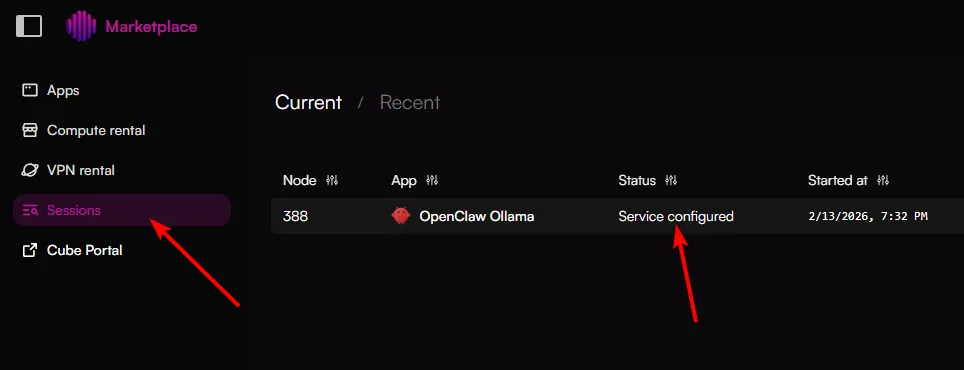
Select Your Instance: Click on the specific session you want to access to open its details page.
Find Connection Details: Look for the SSH Address and Port assigned to that session.
TIP: Keep this tab open while you configure your SSH client, as you will need to copy the unique port number provided for that specific session.
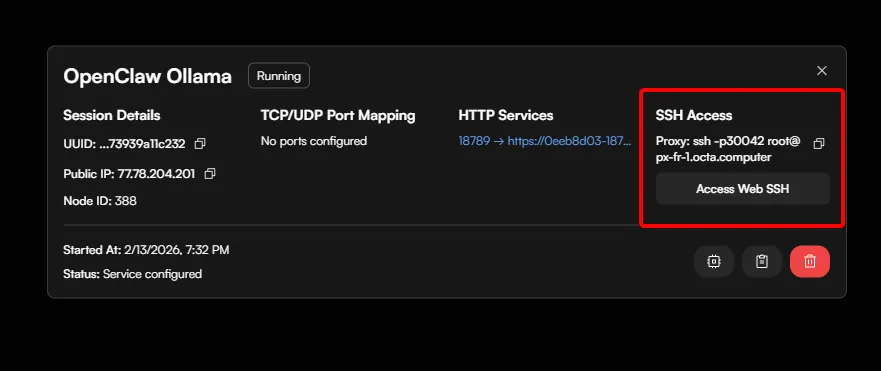
We have created tutorials for access via Putty and Terminus, click on the below to jump to those sections:S
Connecting via TermiusSSH via Terminus
SSH via PuttySSH via Putty